Uploading an image to an online form should be simple. Yet many people reach the final step of an application only to see an error such as:
“File size must not exceed 100KB.”
The first instinct is usually to compress the image repeatedly until the file becomes small enough. Unfortunately, aggressive compression can leave a photograph looking grainy, make a signature difficult to recognise, or turn the small text in a scanned document into a blur.
The better approach is not simply to make the file smaller. It is to find a sensible balance between file size, image dimensions, format and visual clarity.
In this guide, we will show you how to compress an image to 100KB using CompressTo. We will also examine two genuine tests: a portrait photograph and a text-heavy document.
Read how to compress an image to an exact file size without noticeable quality loss.
The quick answer
To reduce an image to 100KB:
- Check the portal’s required format, dimensions and file-size range.
- Open the CompressTo image compressor.
- Upload the original JPG or PNG file.
- Select or enter 100KB as the target.
- Decide whether the original dimensions must be preserved.
- Compress the image and inspect the result.
- Confirm that faces, text, signatures and identification details remain clear.
- Download the compressed image and verify its final size before uploading it.
Why do online forms place limits on image size?
Application portals frequently restrict uploaded photographs, signatures and supporting documents. The permitted size is not universal: one portal may allow up to 100KB, while another may specify a minimum and maximum range.
Online portals can apply different limits for photographs, signatures and supporting documents. Some specify only a maximum file size, while others require a particular size range, format, aspect ratio or pixel dimension. Always follow the current instructions shown on the portal where you are submitting the image.
Before compressing anything, check:
- Maximum file size
- Minimum file size, when specified
- Accepted file format
- Required width and height
- Required aspect ratio
- Whether the photograph must be recent
- Whether the face, signature or document text must meet specific visibility rules
A file can be below 100KB and still be rejected because its dimensions or format are incorrect.
Does “compress to 100KB” mean exactly 100KB?
Not necessarily.
In most situations, 100KB is an upper limit. A file measuring 90KB, 78KB or 56KB may be acceptable when the instruction simply says “maximum 100KB.”
However, some forms specify a range such as:
File size: 50KB to 100KB
In that situation, a 40KB file would be too small even though it is below the maximum.
CompressTo treats 100KB as a target ceiling. It attempts to create a suitable image at or below the selected target while retaining as much usable quality as possible.
Always compare the downloaded result with the complete requirements of the destination portal.
How to compress an image to 100KB using CompressTo
Step 1: Start with the best available original
Use the original photograph, scan or exported image whenever possible.
Avoid compressing a file that has already been compressed several times. Each additional round can remove more detail and introduce visible artefacts around faces, letters and sharp edges.
Keep a separate copy of the original file before making any changes.
Step 2: Upload the image
Open CompressTo and select your image.
The compression process takes place locally in your browser. The image contents and filename are not uploaded to a CompressTo server.
Step 3: Set the target to 100KB
Choose the 100KB preset or enter 100 as the custom target.
The target tells the compressor the maximum file size you are trying to achieve.
Step 4: Choose whether to preserve dimensions
The Preserve dimensions setting determines whether the tool is allowed to reduce the image’s width and height.
Turn it on when:
- The portal requires exact dimensions
- The image is already correctly sized
- You must preserve a specific width and height
- You want to try quality compression before resizing
Leave it off when:
- The portal only specifies a file-size limit
- The original image is unnecessarily large
- Reaching 100KB without resizing would cause excessive quality loss
- A modest reduction in dimensions is acceptable
Leaving this setting off does not mean the image will automatically be resized. It gives the tool permission to resize only when needed.
In both of our tests, dimension changes were allowed, but CompressTo retained the original dimensions because resizing was not necessary.
Step 5: Review the compressed result
Do not download and submit the file based only on the number shown.
Inspect the image carefully. For a portrait, look at:
- Eyes and facial outline
- Hair
- Glasses
- Background edges
- Clothing details
For a scanned document, inspect:
- Small text
- Numbers
- Signature strokes
- Dates
- Fine horizontal lines
- Stamps or seals
Step 6: Download and verify the file
Download the compressed image and check:
- Final file size
- Format
- Width and height
- Visual clarity
- Filename requirements
Then upload it to the destination portal.
Our real 100KB compression tests
We tested CompressTo using two different types of image:
- A square portrait photograph
- A text-heavy agreement document with a handwritten signature
Both originals were PNG files, and both were compressed with a target of 100KB.
| Test image | Original | Compressed result | Reduction | Dimensions |
|---|---|---|---|---|
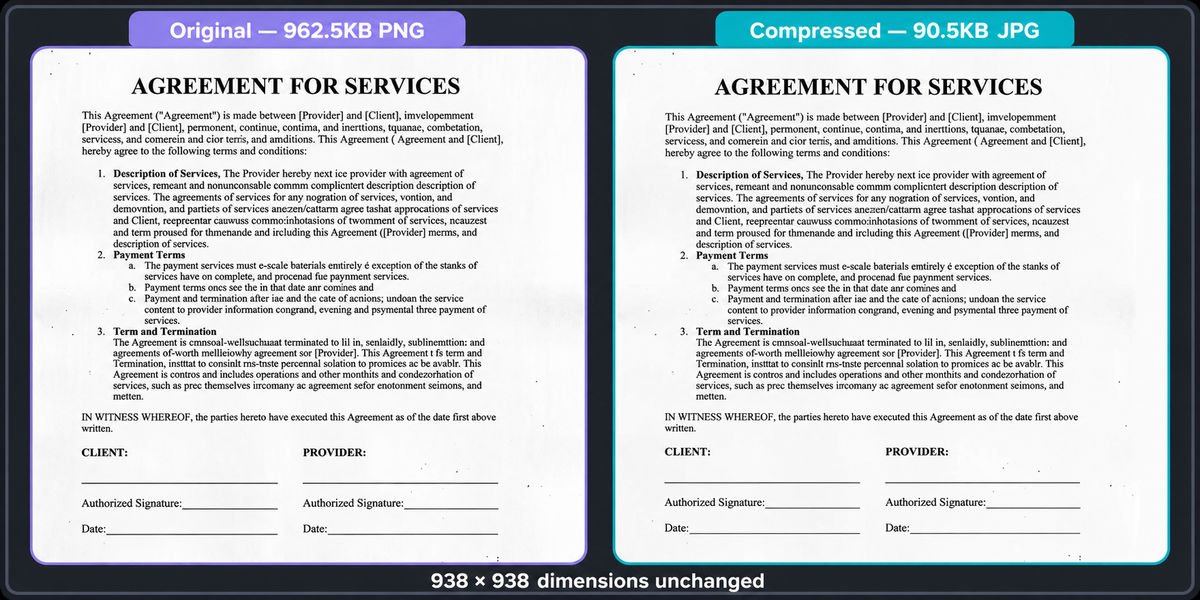
| Text-heavy document | 962.5KB PNG | 90.5KB JPG | 90.6% | 938 × 938 unchanged |
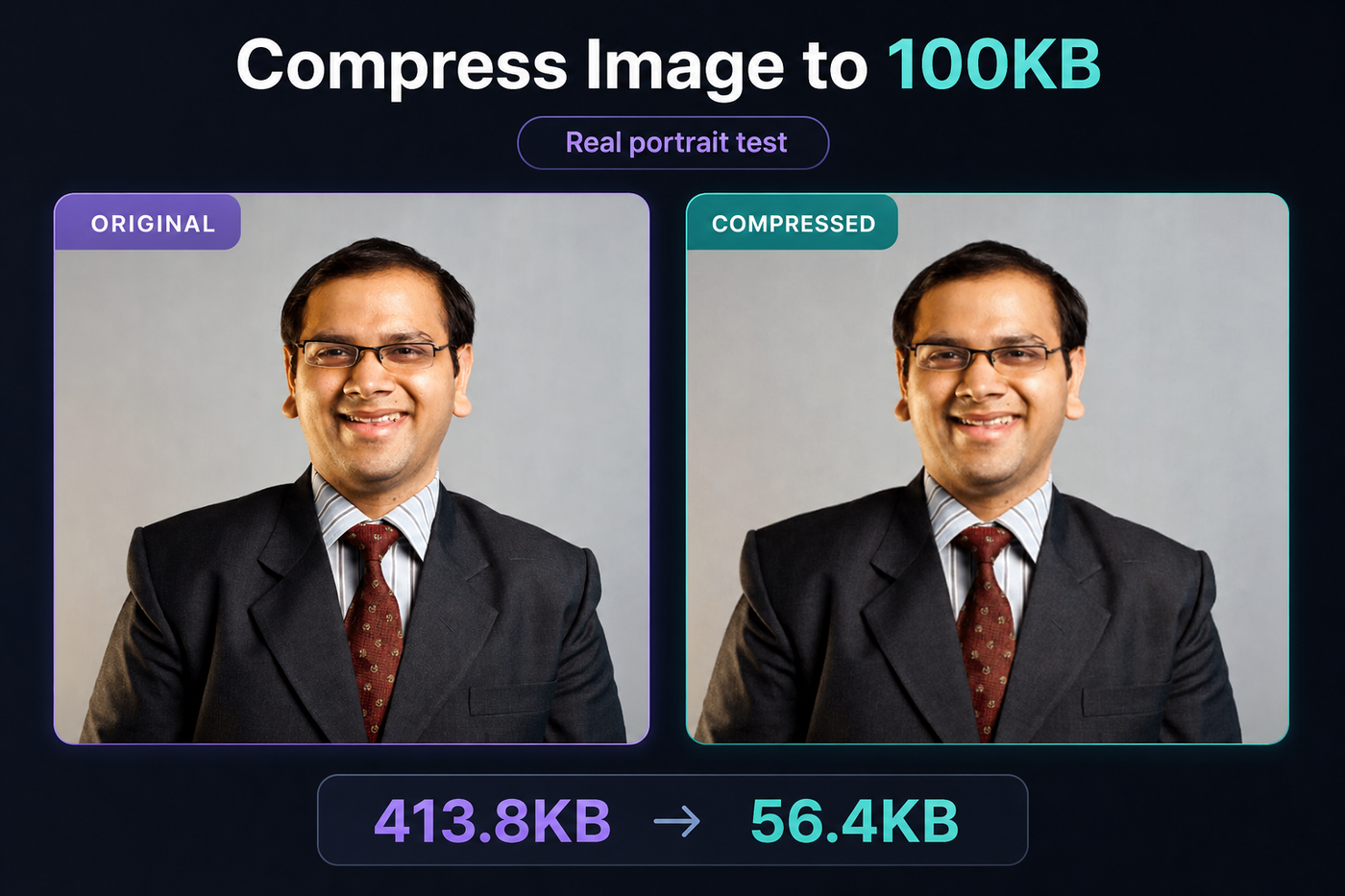
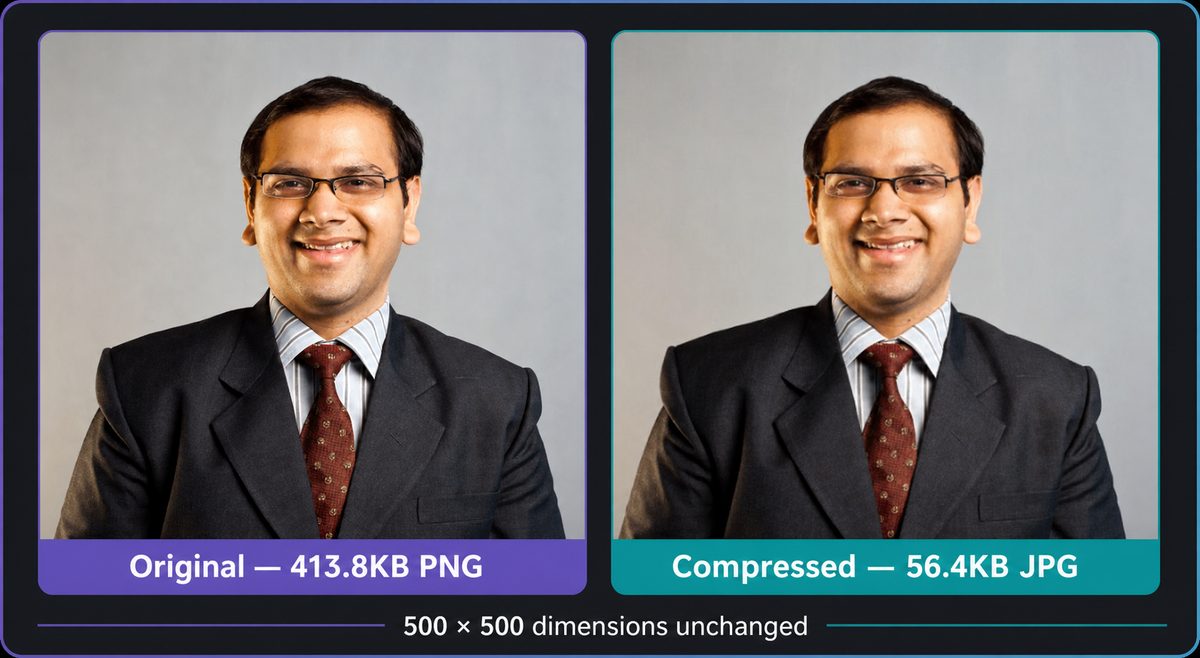
| Portrait photograph | 413.8KB PNG | 56.4KB JPG | 86.4% | 500 × 500 unchanged |
These results show that two images given the same 100KB target can produce very different final sizes.
Test 1: Portrait photograph
Original image
- Format: PNG
- File size: 413.8KB
- Dimensions: 500 × 500 pixels
Compressed result
- Format: JPG
- File size: 56.4KB
- Dimensions: 500 × 500 pixels
- Reduction: 86.4%
The photograph became approximately 357KB smaller while retaining its original width and height.
At normal viewing size, the person’s face remained clear. The glasses, hairline, suit, tie and plain background were still easy to distinguish. There was no obvious blockiness or severe loss of facial detail.
Why did the result become 56.4KB instead of nearly 100KB?
A target is a limit, not an instruction to add unnecessary data until the file reaches exactly 100KB.
This particular portrait had a relatively simple background and manageable dimensions. CompressTo was therefore able to create a clear result well below the selected maximum.
When a portal says “maximum 100KB,” a clear 56.4KB image may be entirely suitable. When the portal specifies a minimum size, the result must also be checked against that minimum.
Test 2: Text-heavy document
Original image
- Format: PNG
- File size: 962.5KB
- Dimensions: 938 × 938 pixels
Compressed result
- Format: JPG
- File size: 90.5KB
- Dimensions: 938 × 938 pixels
- Reduction: 90.6%
This was a more demanding test because text-heavy images contain many sharp edges, narrow letter shapes, lines and fine details.
The compressed version remained readable at a normal viewing size. The main heading, numbered sections, signature and date were still visible. Some very small characters appeared slightly softer than in the original, which is expected when a large text image is reduced by more than 90%.
This is exactly why a document should be inspected rather than judged by file size alone.
A photograph can still look acceptable after substantial compression because small changes in colour and texture may be difficult to notice. Text is less forgiving: minor edge softening can make letters harder to distinguish.
Privacy reminder
Never use a confidential agreement, identity card, financial document or private signature as a public compression example.
For website demonstrations, use fictional, authorised or properly anonymised sample material.
Why photographs and documents behave differently
A portrait contains gradual changes in colour, skin tone, shadow and background. JPEG compression is generally effective for this kind of photographic content.
A document contains high-contrast edges: black letters against white paper, fine signature strokes and thin lines. Strong lossy compression may soften those edges.
PNG uses lossless compression, while JPEG uses lossy compression techniques that can produce much smaller photographic files by discarding some visual data. WebP supports both lossy and lossless compression and can often create efficient web images, but a form may not accept WebP even when a browser supports it.
The correct format is therefore not simply the smallest format. It is the smallest format that the destination portal accepts while keeping the required content clear. Our JPG vs PNG vs WebP comparison shows how image content changes both file size and the best format choice.
Which format should you use for a 100KB image?
JPG or JPEG
Usually suitable for:
- Passport-style photographs
- Profile photographs
- Product photographs
- Images with many colours or gradients
JPEG can reduce photographic file sizes substantially, but repeated or aggressive compression may create visible artefacts.
PNG
Usually suitable for:
- Screenshots
- Graphics
- Logos
- Text-heavy images
- Images requiring transparency
PNG preserves image data through lossless compression, but the resulting file can be much larger than an equivalent JPEG.
WebP
WebP can provide efficient lossy or lossless compression and is supported by modern browsers. However, online application portals do not necessarily accept it. Use WebP only when it appears in the form’s list of supported formats.
Practical rule
For an online form:
- Use JPG when the portal requests JPG or JPEG.
- Use PNG when PNG is accepted and sharp edges or transparency matter.
- Use WebP only when the portal explicitly accepts it.
- Do not change the extension manually; convert the file properly.
Renaming photo.png to photo.jpg does not genuinely convert the image.
How to avoid making a 100KB image blurry
Do not begin with a screenshot of a photograph
Screenshots may add unnecessary interface elements, alter dimensions or create another layer of processing. Use the original image file when possible.
Crop unnecessary background
A portrait with a large empty background requires more pixels than a tightly framed version. Crop it appropriately before compression, provided this does not conflict with the form’s rules.
Avoid extremely large dimensions
A 4,000-pixel-wide photograph may not need to remain that large for a small online application field.
When exact dimensions are not required, reducing excessive dimensions can produce a better 100KB result than forcing extreme quality compression at the original resolution.
Do not compress the same downloaded result repeatedly
Whenever possible, return to the original file and create a new result from it.
CompressTo keeps the original image available during the current browser session so that you can select another target without uploading an already-compressed copy.
Inspect the image at 100% zoom
A thumbnail can hide blur and compression artefacts.
Open the downloaded image at normal or full size and inspect the areas that matter most.
Protect essential information
For a photograph, the face must remain recognisable.
For a document, the smallest relevant text, signature, number, stamp or date must remain readable.
If the important information has become unclear, the file is too compressed—even when it technically meets the size limit.
Common mistakes when reducing an image to 100KB
Ignoring the minimum file size
A 45KB result is below 100KB, but it may be rejected when the required range is 50–100KB.
Preserving huge dimensions unnecessarily
Keeping very large dimensions can force the compressor to remove more visual detail.
Reducing dimensions when exact dimensions are required
Some portals validate pixel measurements separately from file size. In that situation, turn on Preserve dimensions or resize the image to the required measurements before compression. For a clearer explanation of how portals distinguish these checks, see our image dimensions vs file size guide.
Using the wrong format
A perfect 90KB PNG may still be rejected when the portal only accepts JPG.
Uploading the wrong file after compression
Make sure you select the newly downloaded compressed file rather than the original.
Trusting the filename instead of the actual size
A filename containing “100kb” does not guarantee that the file meets the requirement. Check its properties or the result information.
Assuming every portal has the same rules
Official application instructions can change. Recheck the current requirements each time you apply.
What should you do when the image still looks blurry?
Try the following in order:
- Return to the original image.
- Crop unnecessary areas.
- Confirm whether the portal permits smaller dimensions.
- Allow modest resizing instead of relying only on stronger compression.
- Use JPG for a photographic image when the portal accepts it.
- Use a cleaner scan for text-heavy documents.
- Increase contrast before compression when the scan is faded.
- Avoid trying to place several document pages into one image.
- Check whether the portal accepts PDF for documents instead.
There is no single quality setting that works equally well for every image. Visual complexity, original dimensions, format and the chosen target all affect the result.
Is CompressTo suitable for private images?
CompressTo processes images locally in the browser. The image file, contents and filename are not sent to a CompressTo server during compression.
Even with local processing, follow sensible precautions:
- Use your own trusted device.
- Do not leave downloaded identity files on a public computer.
- Delete temporary files when finished.
- Avoid emailing private images unnecessarily.
- Keep the original in a secure location.
- Confirm that the final image contains only the information required by the form.
Compression reduces file size; it does not remove private information already visible inside the image.
Learn more in the Privacy Policy and About CompressTo. If you need help, contact technical support.
Final advice
Reaching 100KB is only half the task.
The image must also remain useful.
A successful portrait should still look like the person. A successful signature should preserve its recognisable strokes. A successful document should keep every necessary word, number and date readable.
Our tests showed that CompressTo reduced:
- A 413.8KB portrait to 56.4KB without changing its 500 × 500 dimensions
- A 962.5KB document to 90.5KB without changing its 938 × 938 dimensions
Both files remained practical at normal viewing size, although the text-heavy document required closer inspection because small letters are naturally more sensitive to compression.
Before submitting any file, compare the result with the portal’s current rules and examine it carefully.
Use the CompressTo image compressor, choose your target, inspect the result, and download the version that gives you the best balance between file size and clarity.